
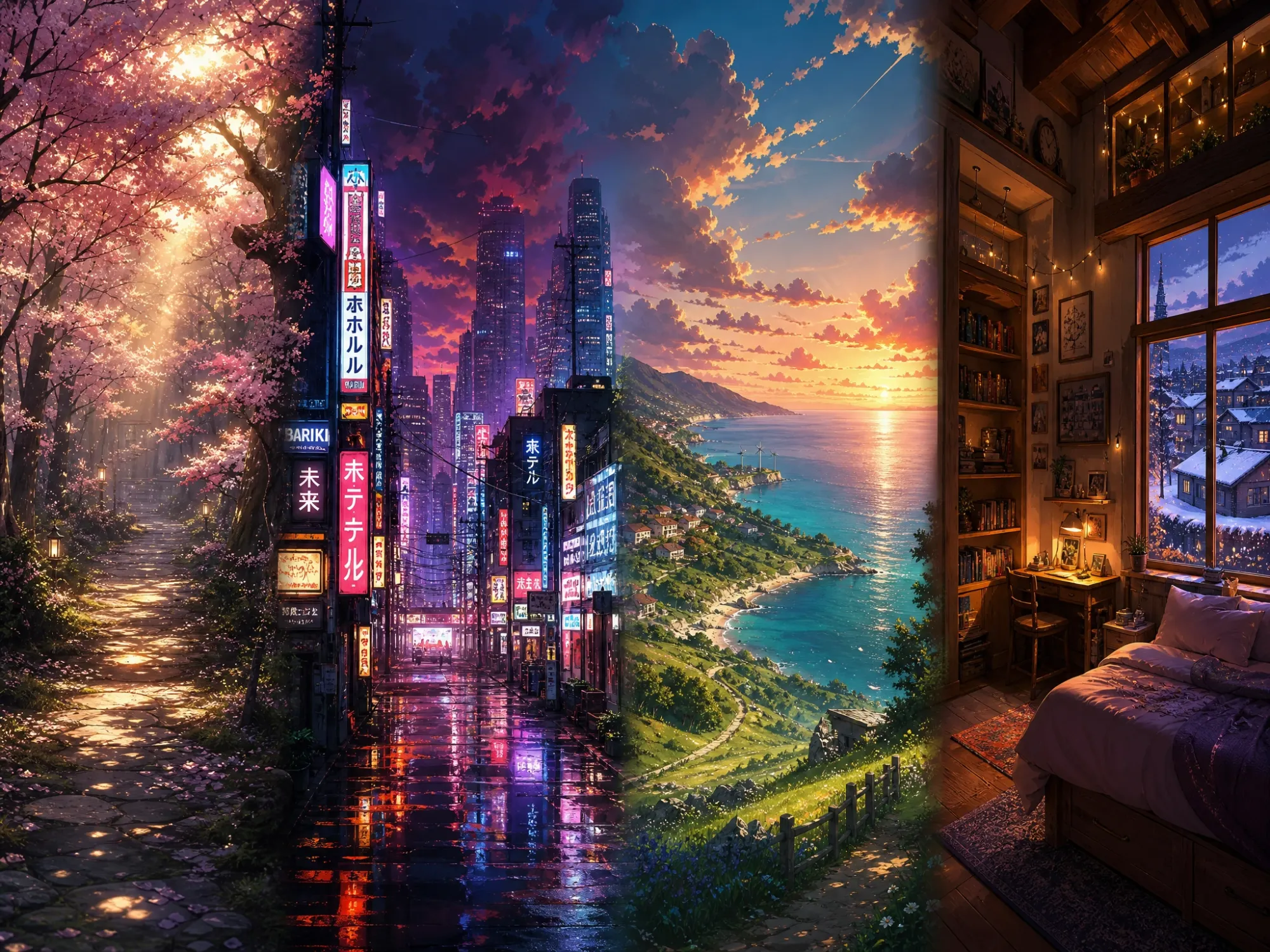
Petal-Filled Spring Path
A quiet countryside lane in soft morning light.
AI anime background generator
Describe a place, time of day, weather, and art direction. Start with a scene prompt, adjust the composition, and make a still anime-style background for a wallpaper, thumbnail, storyboard, or personal project.
Petal-Filled Spring Path
Licensed scene reference · not a generated result
An AI anime background generator turns a written scene brief into a standalone anime-style environment image. Describe the location, time of day, weather, palette, and composition, then prepare a still visual for a wallpaper, thumbnail, storyboard, or animation draft. This workflow creates a single image, not a motion background video.
Prompt starters
Choose a landscape or interior, then refine the prompt with light, atmosphere, season, and framing. Each prompt below can be loaded into the generator for editing.
A quiet countryside lane in soft morning light.
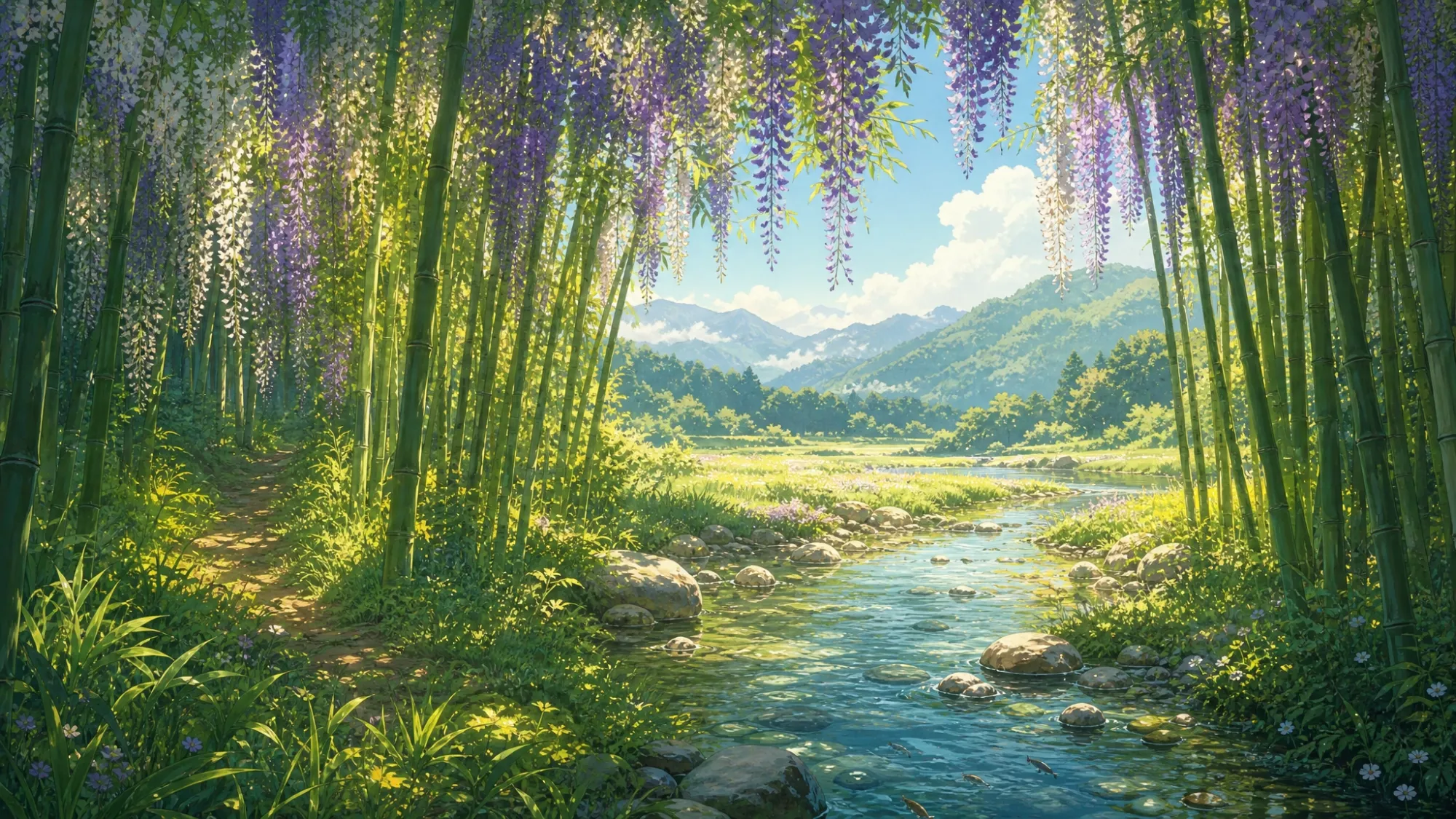
A cinematic city setting for a thumbnail or scene frame.
An open landscape with space for a title or character.
A warm interior background for a quiet slice-of-life scene.
These licensed scene references illustrate visual directions. They are not images generated by Image3.
GPT Image 2
The embedded GPT Image 2 workspace creates a still image from your prompt. Adjust the scene and aspect ratio in the generator before submitting.
Best for final assets, reference-guided edits, and image inputs for video.
Generation may require sign-in or credits. The workspace shows the current credit amount for your selected mode and resolution before you submit.
A clear environmental prompt gives you control over the parts that make a background useful in a larger project.
Set the location, season, time, and foreground details before choosing a visual direction.
Use weather, color, and light sources to set a calm, dramatic, cozy, or mysterious atmosphere.
Start with 16:9 for wide scenes, then choose another supported aspect ratio in the generator if your project needs it.
Use the Image3 GPT Image 2 workspace to turn a written scene idea into a still anime-style background image.
Select a sample prompt or describe the location, weather, time of day, and mood you want.
Keep the prompt focused on the environment and choose an aspect ratio that fits your wallpaper, thumbnail, or storyboard.
Check the selected resolution and displayed credit cost in the generator, then submit when you are ready and download the result.
This page is focused on one clear outcome: a generated anime-style background image. It does not generate a moving wallpaper or animation clip. For motion, take the still image into a separate image-to-video workflow.
Try a simple order: place, time, weather, lighting, composition, and visual direction. For a background, say whether it should be unoccupied, leave foreground space, and use a wide frame.
You can create still anime-style environments such as nature scenery, city streets, rooms, fantasy landscapes, and wide background art for a wallpaper, thumbnail, or storyboard.
Yes. The generator starts with a 16:9 prompt and aspect ratio for wide scenes. Other supported ratios can be selected in the workspace.
No. The embedded workflow generates still images. You can use a downloaded image as a source frame in a separate image-to-video tool.
The page and prompt examples are available to browse. Image generation may require sign-in or credits, and the exact cost depends on the selected mode and resolution. Review the amount shown in the generator before submitting.
The GPT Image 2 workspace exposes the resolution options available for the active provider. Higher tiers may have different access and credit requirements; the live generator shows the current choices and cost.
Open the full image workspace for prompt-led creation and reference-image editing.
ExploreBrowse and adapt prompts for scenes, products, posters, and other visual work.
ExplorePlan a sequence of visual frames for a story or short-form video.
ExploreReview the current Image3 credit packages before starting a generation.
ExploreStart with one location and a wide composition, then adjust the scene in the generator.